
Blocking and unblocking a member
Overview
Blocking a member immediately suspends their access without deleting their account or data. They can be unblocked at any time.
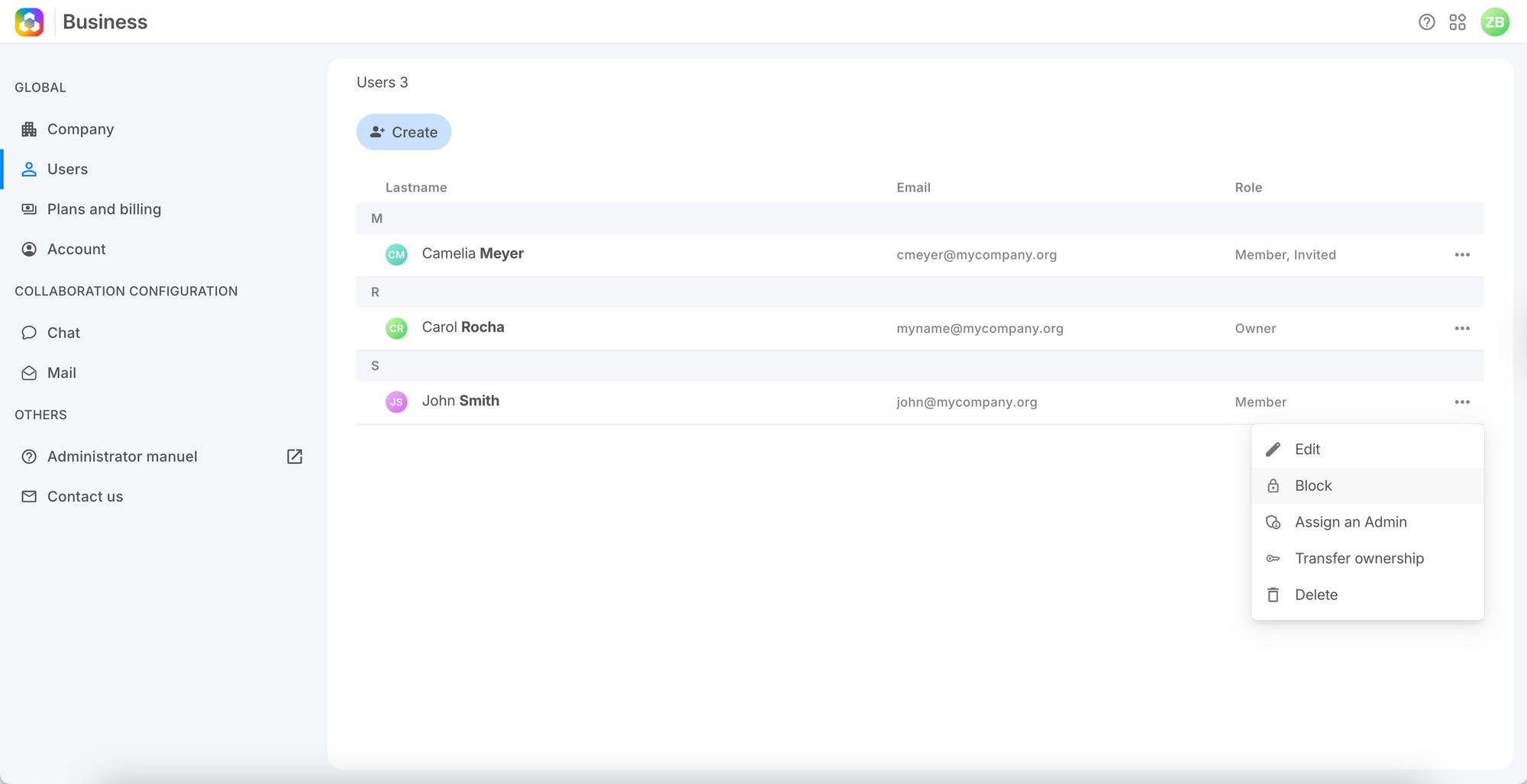
Blocking a member
1. Go to Users, click ⋯ on the member's row, select Block and confirm.
The member cannot sign in. All their data is preserved.
Unblocking a member
1. Filter the Users list by Blocked status.
2. Click ⋯ → Unblock. Access is restored immediately.
💡
No email is sent on unblock — notify the member directly.
Frequently asked questions
Is the member notified when blocked?
No. They will see an error message the next time they try to sign in.
Can a blocked member receive emails?
No. While blocked, the member cannot access any part of the workspace.