
Adding members to a team
Overview
You can add active members to a team at any time. A member can belong to one or several teams.
Add members from the Teams page
- Go to Teams.
- Select the team.
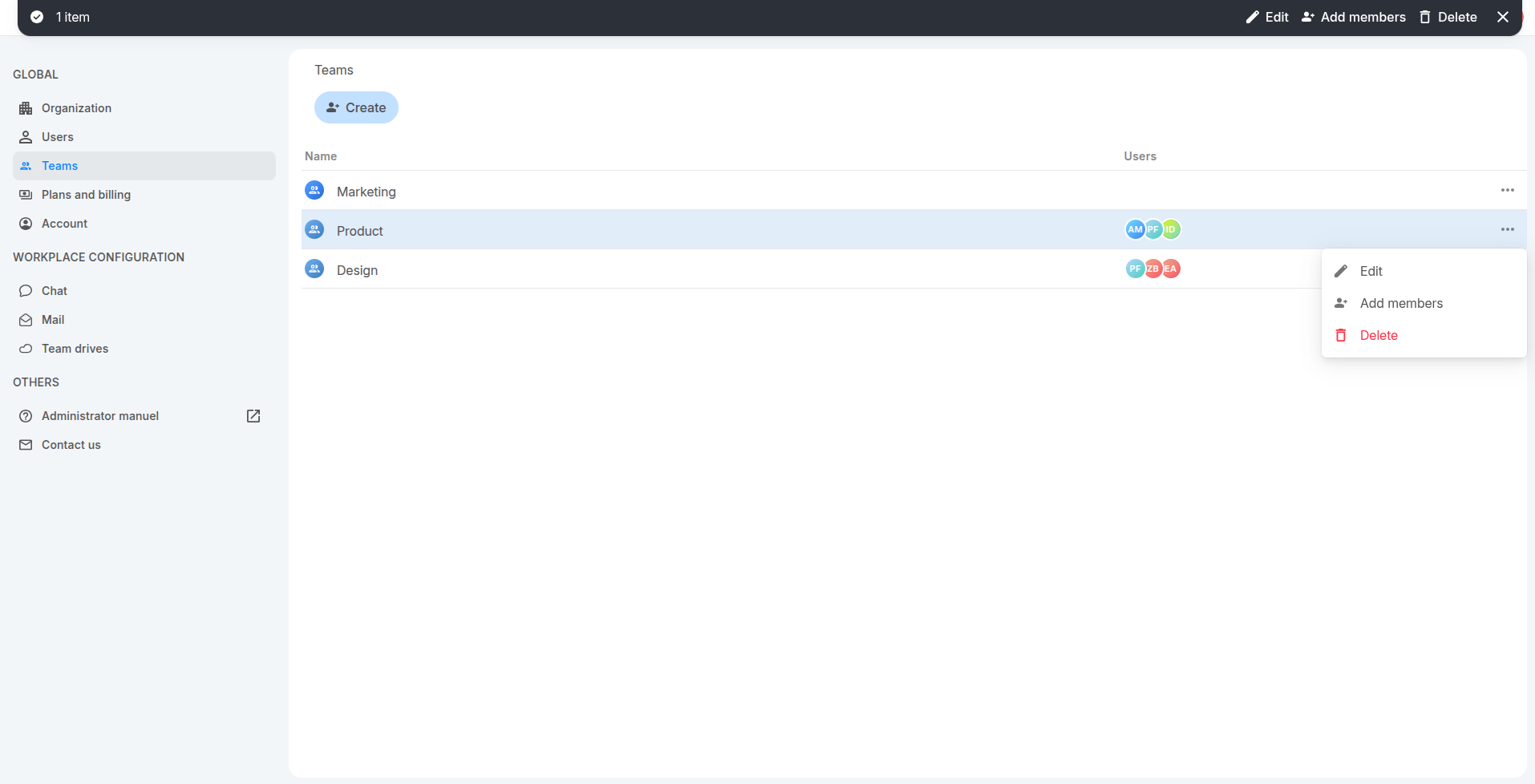
- Click Add members in the action bar at the top of the page, or you can click 3-dot button of the team then select option:"Add members"
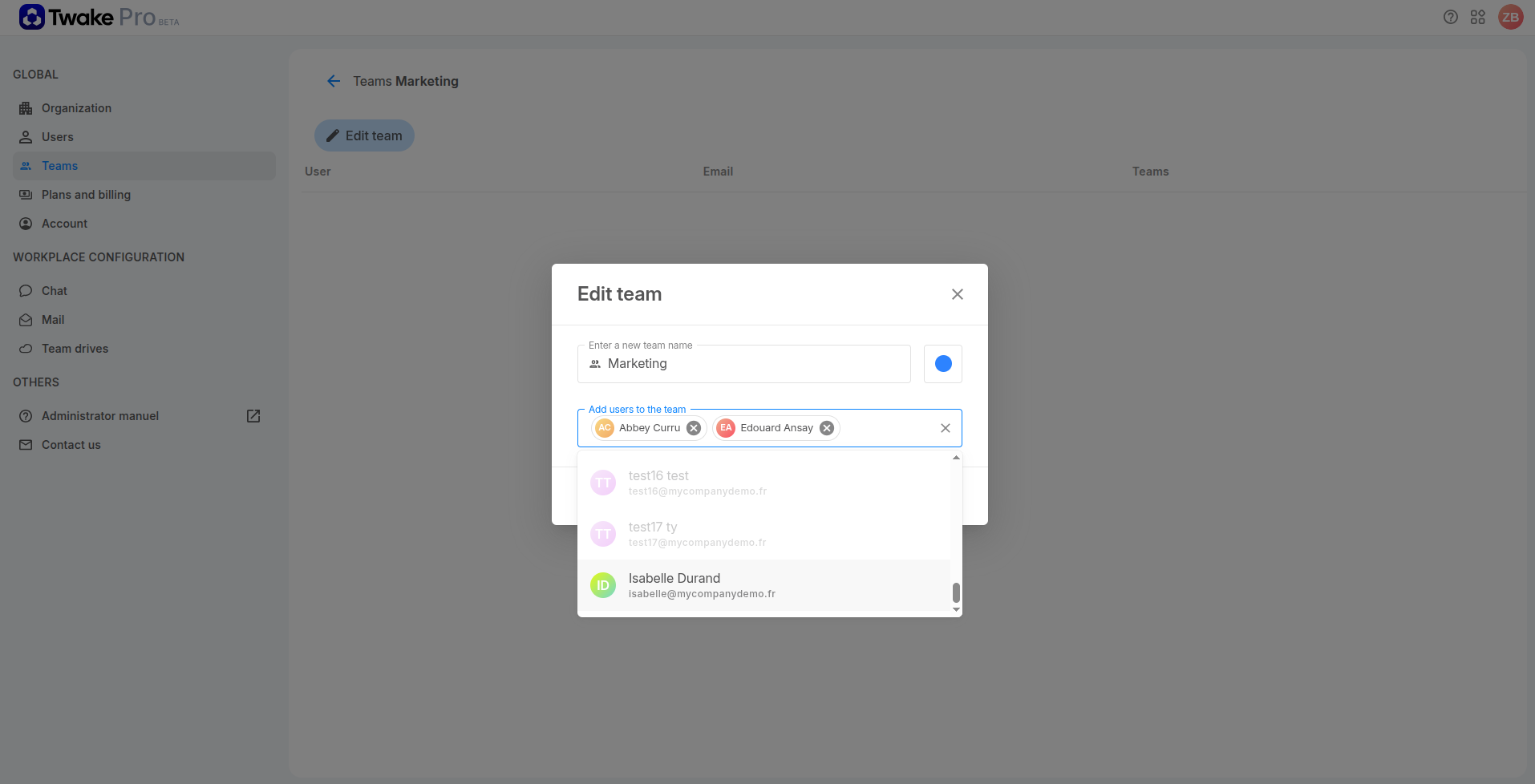
- Search for active members by name or email address.
- Select the members you want to add.
- Save your changes.
Assign teams from a member’s profile
- Go to Users.
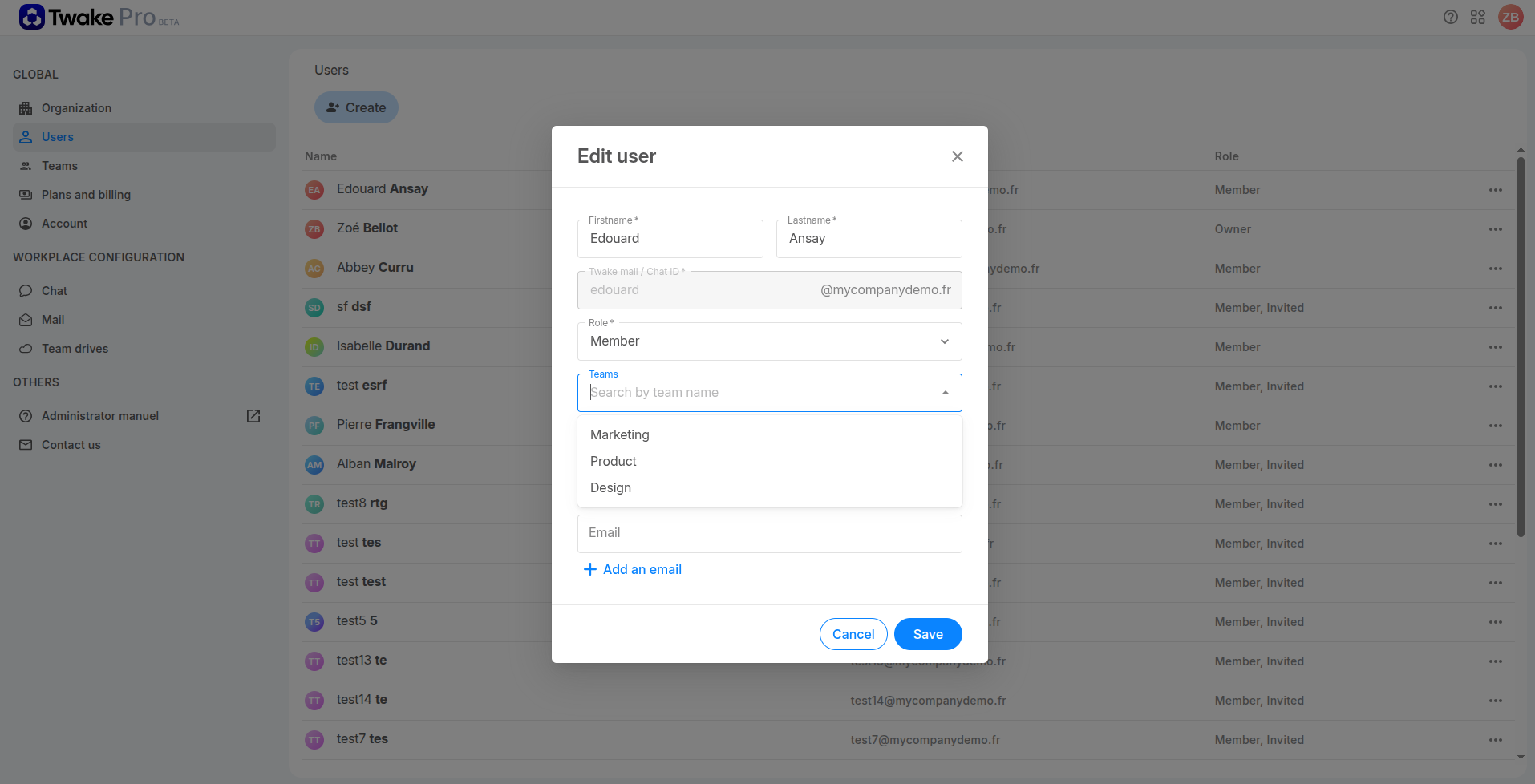
- Click ⋯ on the member’s row and select Edit.
- Click the Teams field.
- Search for and select one or more teams.
- Click Save.
The selected teams appear as labels below the Teams field. The user is added to the selected teams.
Frequently asked questions
Why is a user greyed out or unavailable?
The user has not yet accepted the invitation to join your organisation. You can add pending user to a team from Edit user screen. After that user accept invitation and join your organization, he is also added to the team automatically.
Can I add someone who does not appear in the Users list?
No. Create the user from the Users page first. Then they can be assigned to a team.