
Removing a member from your organisation
Overview
Removing a member permanently revokes their access and deletes their account from your workspace.
⛔
This action cannot be undone. If you only need to temporarily suspend access, use Block instead.
How to remove a member
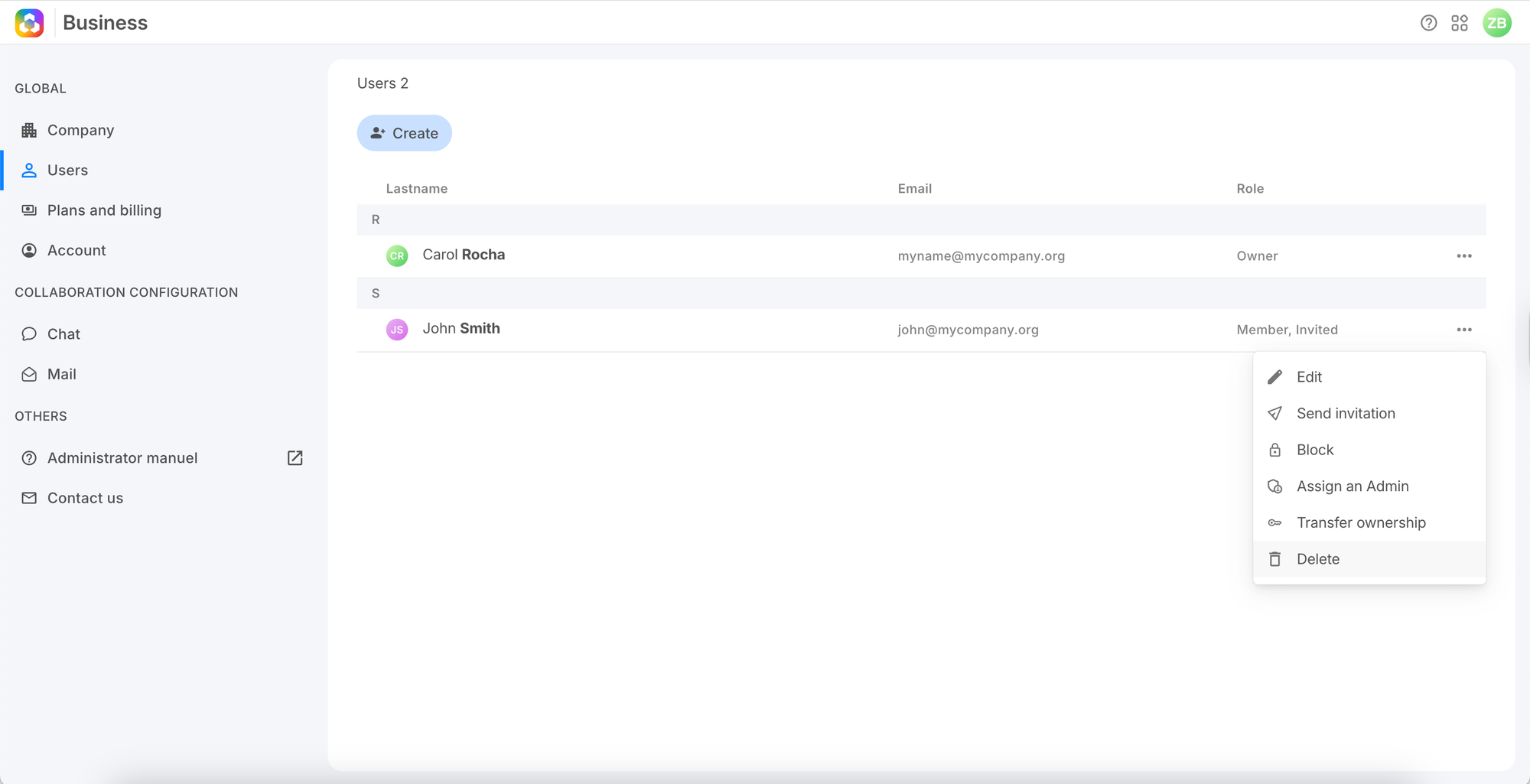
1. Go to Users, click ⋯ on the member's row, and select Delete.
2. Confirm by typing the member's email address, then click Delete.
What happens after removal
- The member immediately loses access to all workspace apps.
- Files in shared spaces remain and are not deleted.
- Files in the member's personal Drive may need to be transferred beforehand.
- The member's personal Twake account is not deleted.
💡
Billing note: removing a member is automatically reflected in your next invoice.
Frequently asked questions
Can I re-add a removed member later?
Yes — you can create a new account for them. Their previous personal data will not be recovered.
Can I remove the Owner?
No. Ownership must first be transferred to another Administrator.