
Creating your organisation
Overview
Creating an organisation sets up a dedicated Twake workspace for your company. The process has two parts: creating the organisation itself, then creating the Owner account — your professional account linked to that organisation.
Prerequisites
- A personal Twake account on twake.app. If you don't have one yet, create it before proceeding.
- The domain name you want to use (e.g.
yourcompany.com). You'll need access to its DNS settings later to verify it.
Step 1 — Start organisation creation
- Sign in to your personal Twake account.
- Click the settings menu (your profile icon, top right).
- Click Create business account.
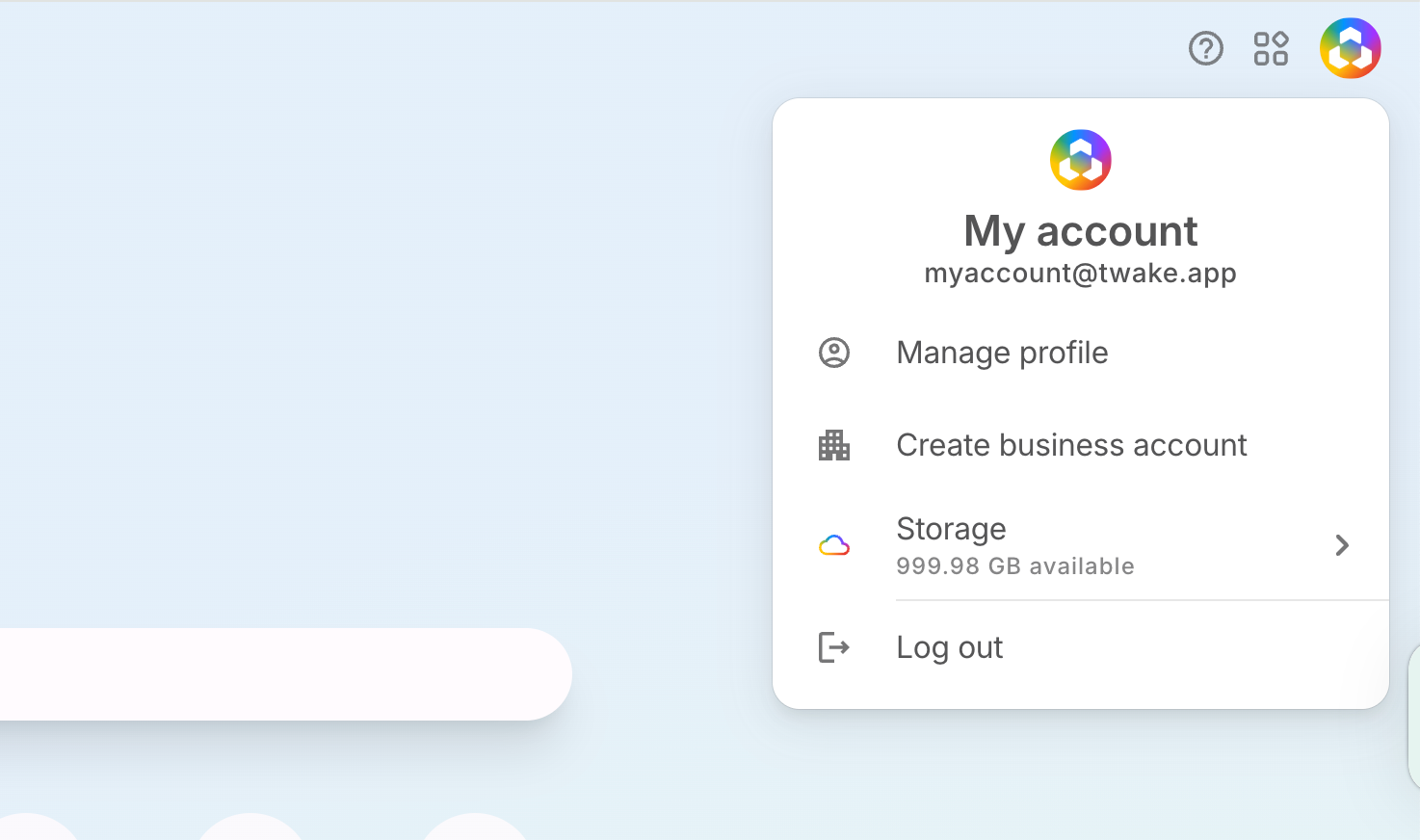
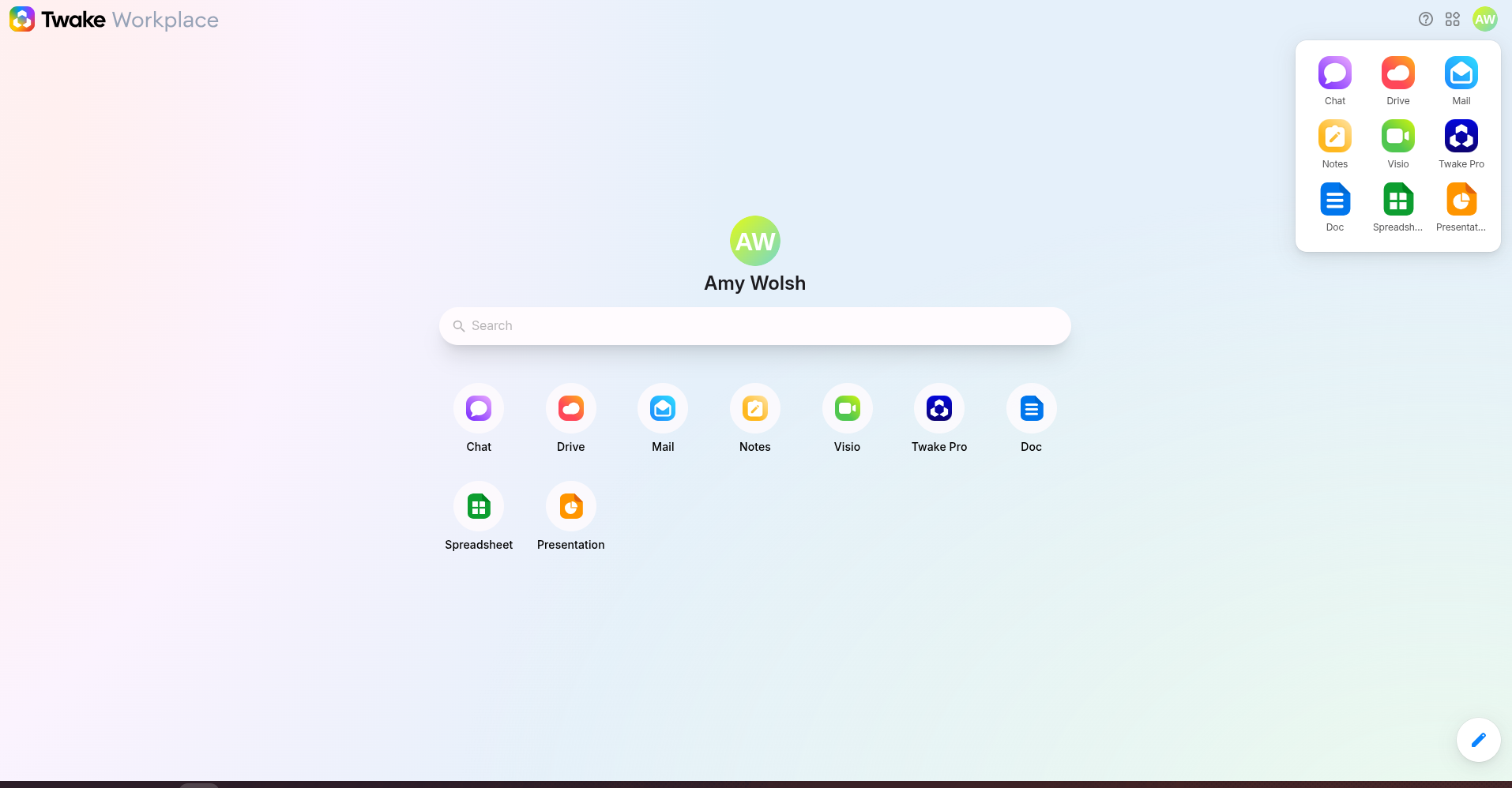
Alternatively, from the Twake Workplace home page, select Twake Pro, or open the application menu in the upper-right corner then select Twake Pro
The organisation creation page opens.
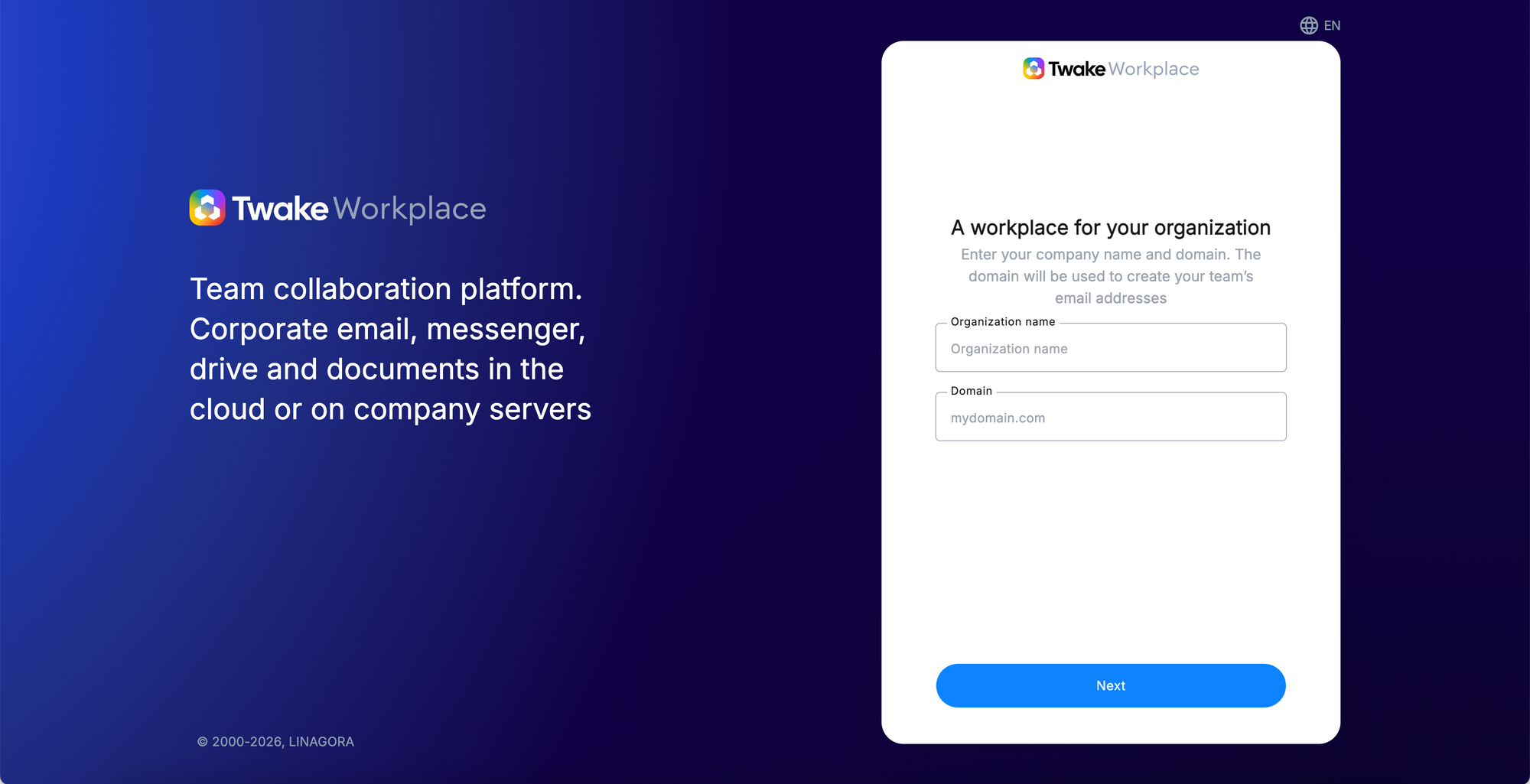
Step 2 — Set up the organisation
Fill in your organisation's details:
- Organisation name — the display name of your company workspace.
- Organisation domain — the domain that will be used to build your members' email addresses and their Matrix ID for Twake Chat.
Step 3 — Create your Owner account
After setting up the organisation, you create your professional (Owner) account — a separate account from your personal Twake account, dedicated to this organisation.
First, create your email address and Chat username. You can either:
- Select the address suggested by Twake.
- Enter a different username in Mail and chat username.
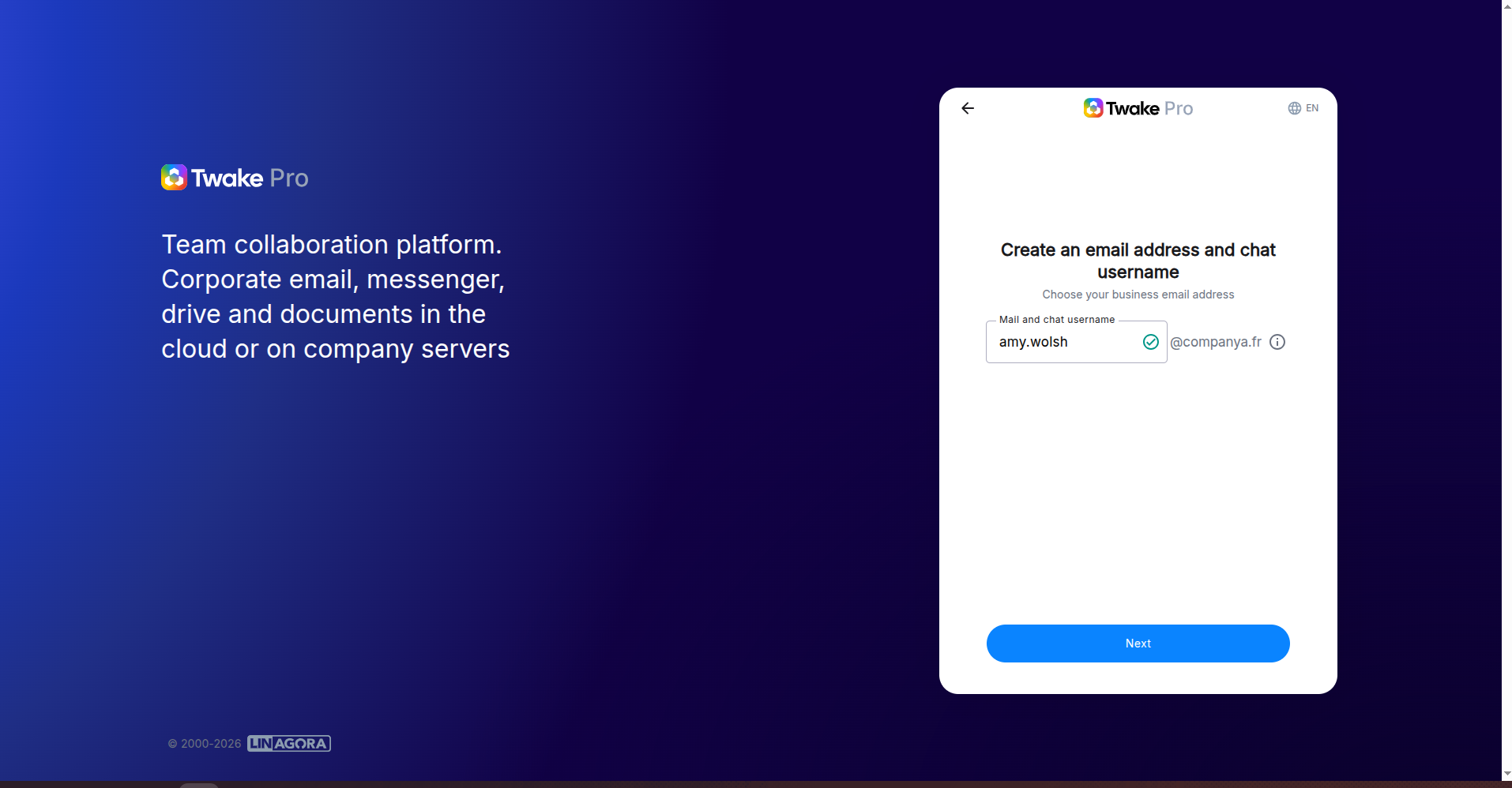
After selecting or creating your address, click Next.
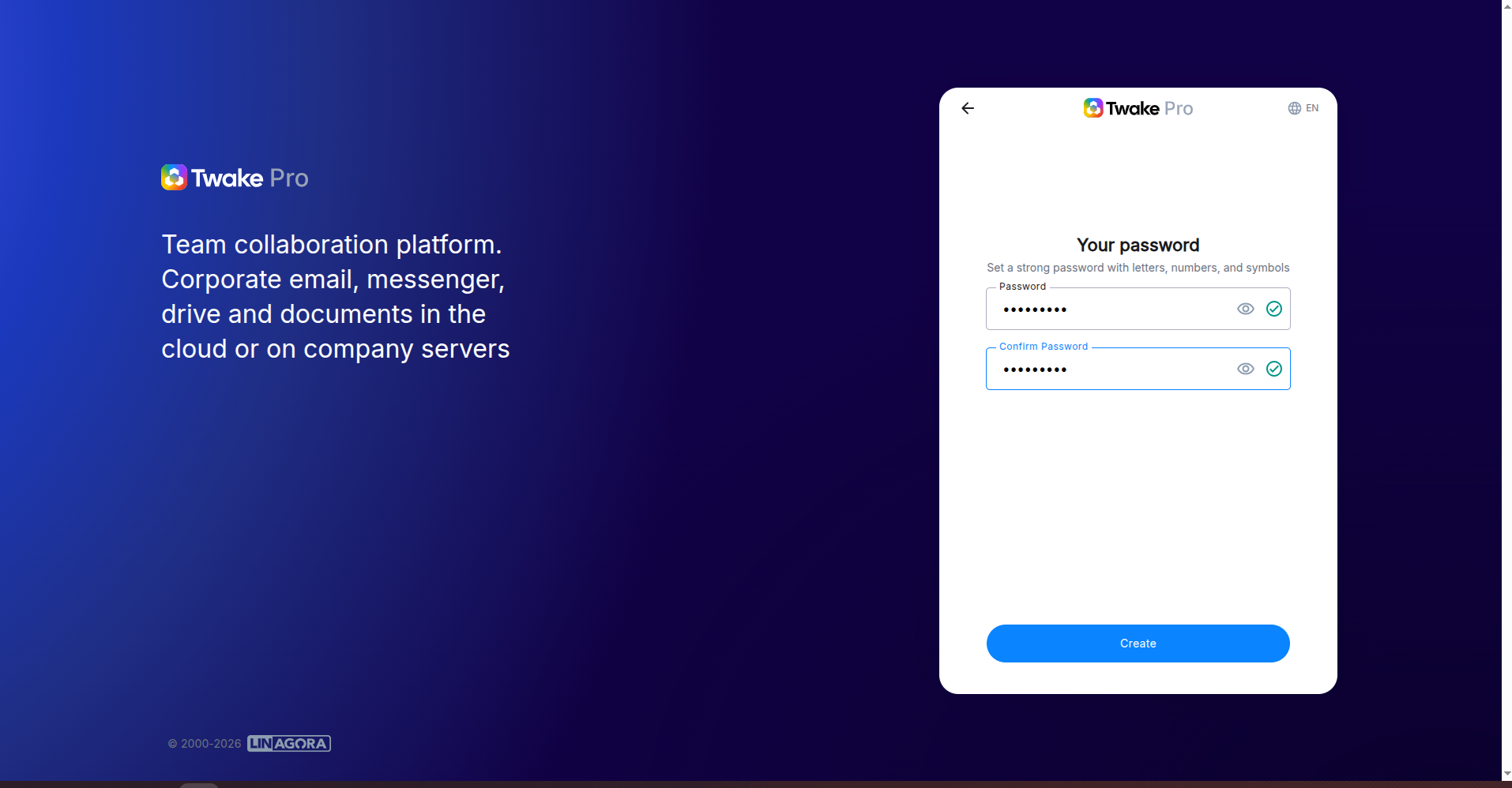
Now, create your password:
- Enter a strong password in Password.
- Enter it again in Confirm Password.
- Click Create.
Use a strong password containing letters, numbers, and symbols.
Your organisation and its Owner account are created. After the organisation is created, Twake opens the Business dashboard.
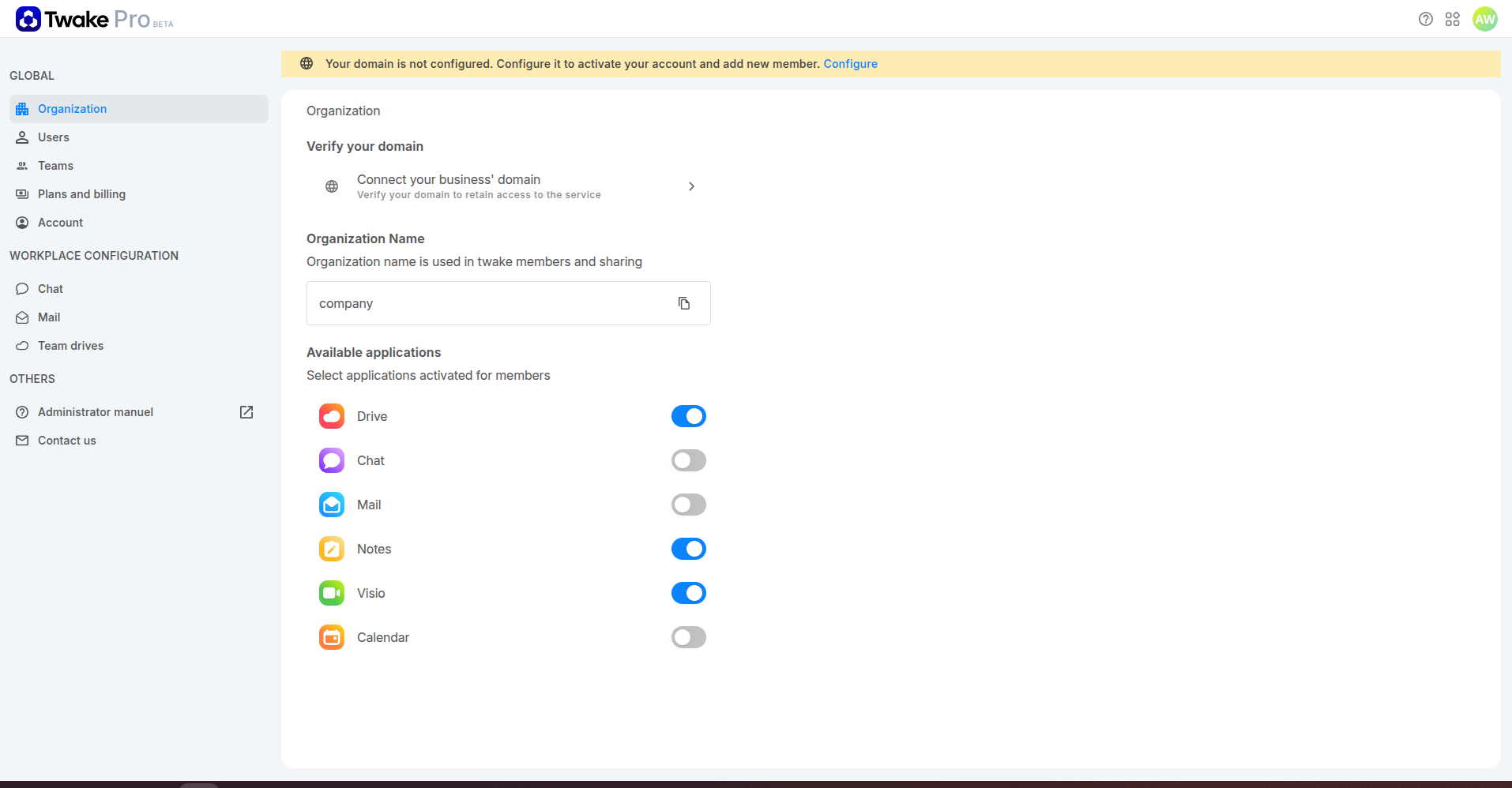
Your business domain is not yet configured. A notification banner appears at the top of the dashboard.
Click Configure in the banner or go to:
Organization → Connect your business’ domain
You must verify the domain before you can activate the organisation and add new members.
For detailed instructions, see Configuring your business domain
Frequently asked questions
Do I need an existing Twake account to create an organisation?
Yes. You must have a personal Twake account on twake.app before proceeding.
Can I create more than one organisation?
Your personal account can be used to create multiple organisations. However, each Owner account is linked to one organisation only.
Can I change the Owner after creation?
Yes. You can submit an ownership transfer request from the Business dashboard. See Changing a member's role.