
Changing a member's role
Overview
Roles control what a member can see and do. The change takes effect immediately.
| Role | Access level |
|---|---|
| Member | Standard user — can use Twake apps, cannot access the Business dashboard. |
| Administrator | Can manage members, roles, subscription and domain settings from the Business dashboard. |
| Owner | Full control including organisation deletion. There can only be one Owner. |
How to change a role
1. Go to Users, click ⋯ → Edit on the member's row.
2. Open the Role dropdown and select the new role.
3. Click Save.
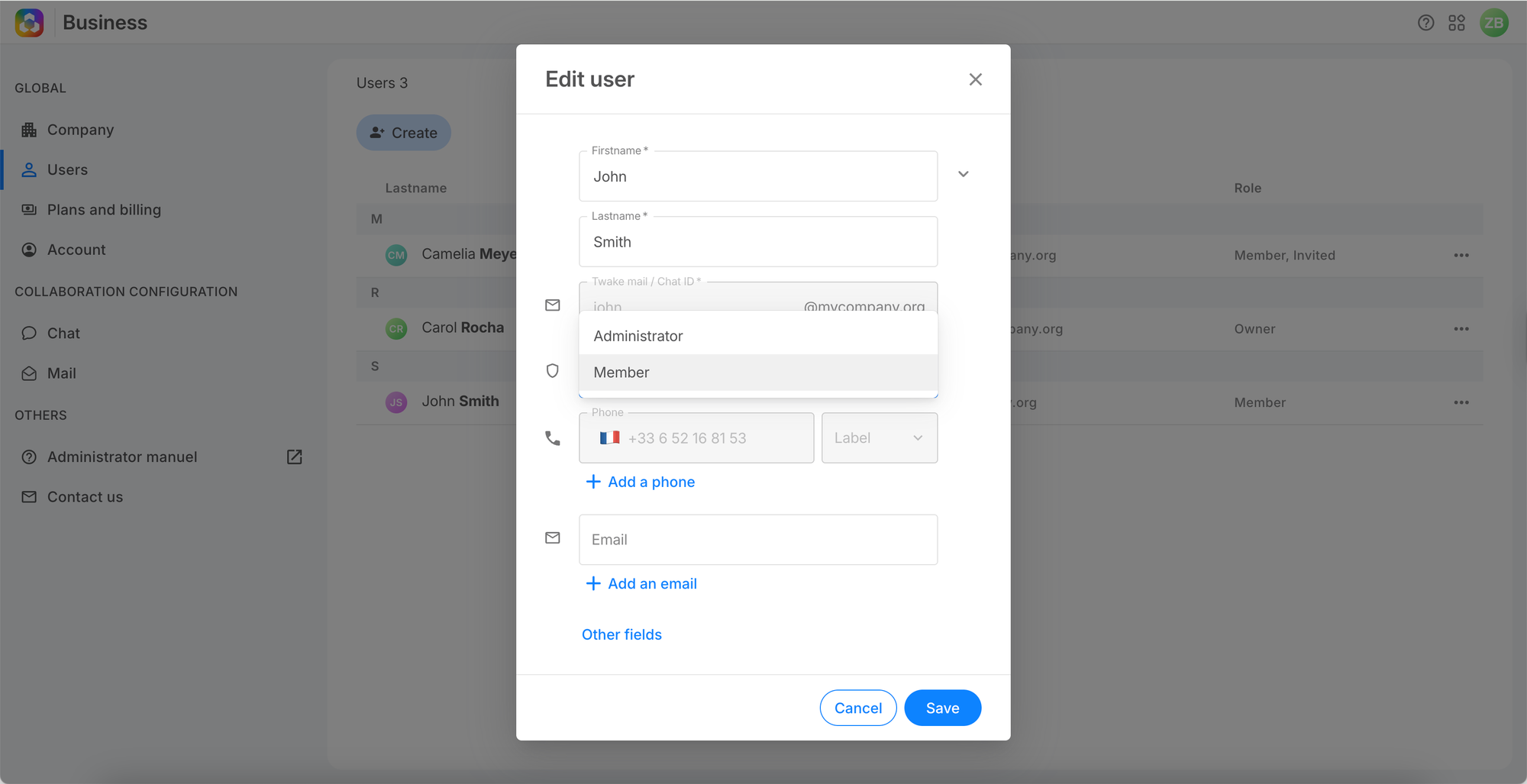
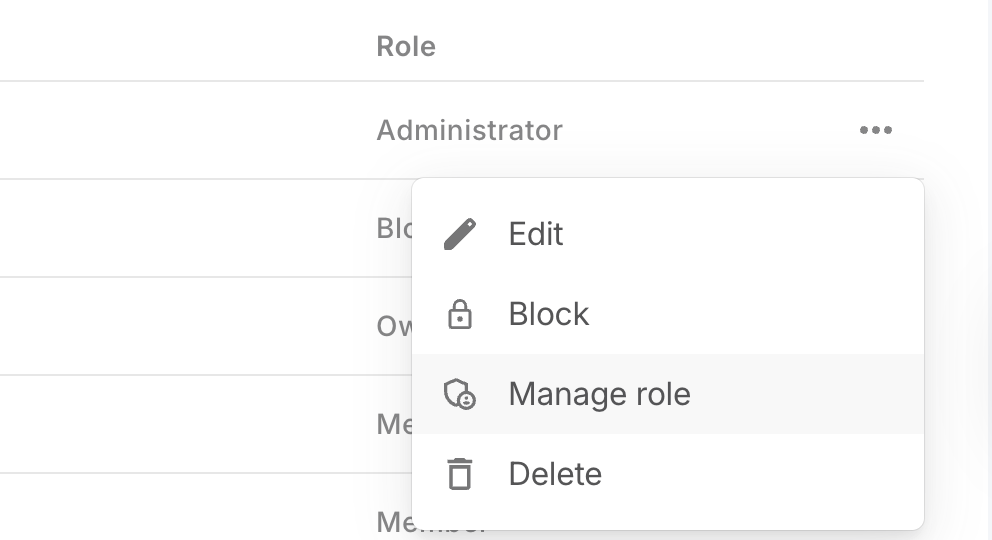
The member's new role is immediately reflected in the Users list.
⚠️
Transferring ownership of an organization requires identity verification, so please contact our support team to complete this process.
Frequently asked questions
Can a member have more than one role?
No. Each member holds exactly one role at a time.
Does the member need to sign out after a role change?
No. The change takes effect on their next page load.